Nhà

Blog về Guide Diagnosing Laptop LCD Failures With a Multimeter

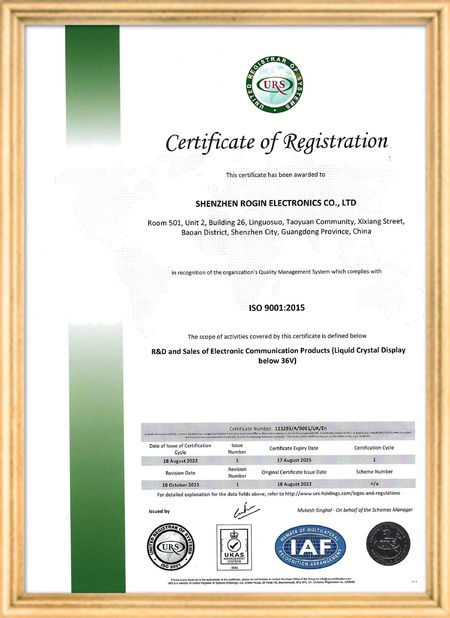
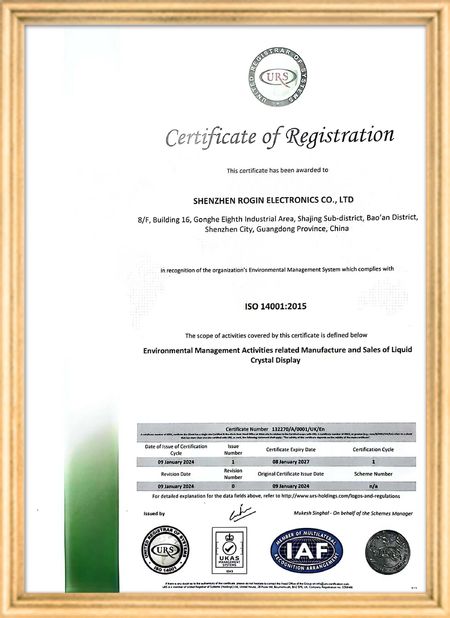
Chứng nhận
Trung Quốc Shenzhen Rogin Electronics Co., Ltd. Chứng chỉ
Khách hàng đánh giá
Những màn hình này hoạt động hoàn hảo trên xe điện. Độ sáng cao, chống chói và ổn định ngay cả dưới rung động dài hạn. Hành khách yêu thích tầm nhìn rõ ràng.

—— Kasper Sørensen

Màu sắc chính xác, phản ứng nhanh, và khởi động nhiệt độ thấp bình thường, hoàn toàn phù hợp với môi trường khắc nghiệt của hệ thống tàu.

—— Nicole Becker

Dễ lắp đặt, phạm vi nhiệt độ rộng và tầm nhìn xuất sắc trong môi trường sáng.

—— Giovanni

Màn hình LCD độ sáng cao này rất phù hợp cho các bảng điều khiển công nghiệp của chúng tôi. Chúng vẫn hiển thị rõ nét ngay cả dưới ánh nắng trực tiếp của xưởng và hoạt động 24/7 mà không gặp bất kỳ sự cố nào. Chất lượng đạt tiêu chuẩn công nghiệp tuyệt vời.

—— Lukas Müller

Tôi trò chuyện trực tuyến bây giờ
Công ty Blog
Guide Diagnosing Laptop LCD Failures With a Multimeter
tin tức mới nhất của công ty về Guide Diagnosing Laptop LCD Failures With a Multimeter

When your laptop screen suddenly goes dark, don't panic. A simple multimeter can help you quickly identify power supply issues. This guide simplifies the diagnostic process, enabling you to check your LCD screen's power supply and determine whether the problem lies with the screen itself or its supporting components.

Preparing Your Multimeter

Begin by setting your multimeter to measure DC voltage. Before testing, identify your screen's rated voltage—typically marked near the power connector or available in the device specifications. Modern laptop screens commonly operate between 3.3V to 19V, depending on the model.

Testing Procedure

With the laptop powered off, carefully connect the multimeter probes to the screen's power connector terminals:

  • Place the red probe on the positive (+) terminal
  • Place the black probe on the negative (-) terminal or ground

Power on the device and observe the multimeter reading. Compare this measured voltage with your screen's rated voltage.

Interpreting Results

If the reading shows significantly lower voltage than specified or no voltage at all, potential issues include:

  • Faulty power adapter
  • Damaged motherboard power circuits
  • Loose or damaged cable connections

Systematically check each component: try a different adapter, inspect motherboard connections, and reseat all cables. If voltage readings return to normal after any intervention, you've likely found your culprit.

When voltage measurements match specifications but the screen remains nonfunctional, the issue may involve the LCD panel itself, the backlight, or other screen components requiring further diagnosis.

Safety Considerations

Always disconnect power before handling internal components. When working with exposed connectors, avoid touching multiple contacts simultaneously to prevent short circuits. These basic diagnostic techniques provide valuable information for determining whether to repair or replace components.

Pub Thời gian : 2026-05-18 00:00:00 >> blog list
Chi tiết liên lạc
Shenzhen Rogin Electronics Co., Ltd.

Người liên hệ: Mr. Kelvin Zhu

Tel: +86 15919061504

Gửi yêu cầu thông tin của bạn trực tiếp cho chúng tôi (0 / 3000)